ENGINEERING NOTE / 01 SQL SERVERAUTOMATION
The Lookups I Stopped Skipping
SSMS will run a stored procedure on a keystroke and hand it whatever you have highlighted. What you can pass it is narrower than it looks, and that constraint decided the design.
TABLE OF CONTENTS
There is a category of lookup you skip because it costs more than the answer is worth. What columns does this table actually have. Is this index being read or only maintained. Where else in the database does that column name appear. None of these are hard questions — they are four clicks through Object Explorer, or a query you have to stop and remember, and in the middle of looking at something else you decide you probably already know.
You usually do already know. The problem is the times you don’t, and you carried on anyway.
- SHORTCUT KEYS USED
- 8
- PROCEDURES IT NEEDS
- 3
- CLICKS TO RUN ONE
- 0
So this is a tooling note rather than an incident: sp_QueryShortcuts. Its
change log starts in March 2014 and I only wrote it up three years later,
which is the right order — it earned the write-up by still being on my
keyboard after three years, not by being a good idea.
The interesting part is not the shortcut list. It is that SSMS gives you a very narrow hook, and almost every design decision here falls out of how narrow it is.
What SSMS actually gives you§
Under Tools → Options → Environment → Keyboard → Query Shortcuts, SSMS lets you bind a string of T-SQL to a key. Press the key and it runs that string.
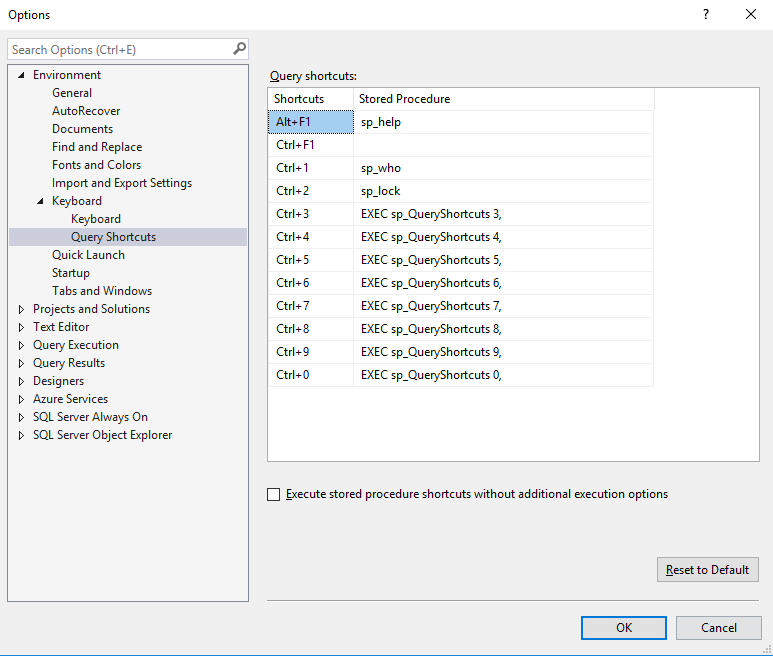
The part that makes it useful is what happens when you have text selected in
the editor: SSMS appends the selection to the bound string and executes the
result. Bind Ctrl+3 to this —
EXEC sp_QueryShortcuts 3, — highlight dbo.Orders, press Ctrl+3, and the batch that reaches the
server is:
EXEC sp_QueryShortcuts 3, dbo.OrdersThat is the whole mechanism. It is also the whole constraint.

-
01 SELECT
Highlight an object name, a column name, or a fragment of text in the query editor.
-
02 COMPOSE
SSMS concatenates the bound string and the selection. No escaping, no quoting — plain concatenation.
-
03 PARSE
SQL Server parses the result as one batch. Anything the selection breaks, it breaks here, before any code of mine runs.
-
04 DISPATCH
sp_QueryShortcuts receives the shortcut number and the text, and decides what to do with it.
-
05 RESULT OBSERVED
One or two result sets, in the same window, without leaving the keyboard.
Note the trailing comma in the bound string, and note that it is load-bearing in both directions. It is what lets the selection arrive as a second parameter — and it is also why pressing the key with nothing highlighted is a syntax error rather than a no-op. That is a fair trade, but it is worth knowing before you wonder why an empty selection shouts at you.
One procedure behind every key§
SSMS offers twelve shortcut slots. Three arrive pre-bound — Ctrl+1 to
sp_who, Ctrl+2 to sp_lock, Alt+F1 to sp_help — and those are worth
leaving alone. Of the nine that remain, eight are Ctrl+3 through Ctrl+0:
one hand, one row, no reaching. That is the whole reason there are eight
shortcuts rather than nine. Ctrl+F1 is free too, and I never once reached
for it.
Eight keys, then, and the obvious design is eight small procedures, one per key.
The entry point:
ALTER PROCEDURE [dbo].[sp_QueryShortcuts]
    (@Action INT, @Object NVARCHAR(1000), @AddParam NVARCHAR(1000) = NULL)
WITH RECOMPILE
AS
BEGIN

SET TRAN ISOLATION LEVEL READ UNCOMMITTED
SET NOCOUNT ON
Two lines there are worth more than they look. READ UNCOMMITTED is because
a tool you press without thinking must never be the thing that blocks the
server you are trying to look at. WITH RECOMPILE is because every branch
below builds a different statement, so a cached plan for one shortcut is
worthless to the next.
Installing it in master with the sp_ prefix is what makes it work from
any database context without qualification — the same special case that makes
sp_who and sp_help resolve everywhere. That went in three years after the
first version, and the change log records what it bought: “Removed @DBName
from parametres since it’s not needed after using sp_ prefix.” One naming
convention deleted a parameter from every call.
Every shortcut shows its work§
The last two lines of the procedure, after every branch has built its statement:
  PRINT @SQL
  EXEC sp_executesql @SQL WITH RECOMPILE
That PRINT is the best decision in the whole thing, and it cost one line.
Every shortcut leaves the statement it generated in the Messages tab, so the
tool is never a black box: when a result looks wrong you can read exactly
what was asked, and when a result looks interesting you can lift the query
out and keep working on it.
A shortcut that hides its query saves you typing once. A shortcut that shows its query teaches you the catalogue views, and then you do not need it.
The characters that don’t survive the paste§
Now the constraint. SSMS concatenates your selection into a batch with no
quoting of any kind, so the selection has to be something SQL Server will
accept in an EXEC argument list. A bare object name is fine. A pattern is
not.
Highlight %Record% and the batch becomes EXEC sp_QueryShortcuts 5, %Record%, which fails to parse. My procedure never runs, so it cannot help.
Whatever the fix was, it had to happen in the text the user types.
The answer was two stand-in characters. The setup script says why in one sentence: “This was added so that when passing object names you don’t have to wrap them in single quotes for the shortcut to work.”
| You type | It means | Example | Becomes |
|---|---|---|---|
# | % — wildcard | ab#xyz | ab%xyz |
@ | . — schema separator | hr@Users | hr.Users |
They are not the same mechanism, which took me a while to appreciate about my
own code. # is a substitution, done on the way in and applied to both
parameters:
SET @Object   = REPLACE(@Object,   '#', '%');
SET @AddParam = REPLACE(@AddParam, '#', '%');
@ is not substituted at all. It is a second separator the name parser
accepts alongside ., so the two-part name never has to reach the batch in a
form the batch would reject:
IF CHARINDEX('.', @_Object_) > 0
  BEGIN  -- split schema from object on a dot
  END;
IF CHARINDEX('@', @_Object_) > 0
  BEGIN  -- ...or on an at sign
  END;
Both forms work when you call the procedure by hand. Only the second survives being pasted in unquoted by SSMS.

And you do not have to supply the schema at all. When the highlighted text has no separator, the procedure looks the schema up:
SELECT TOP 1 @_Schema_ = S.name
FROM   sys.objects AS O
JOIN   sys.schemas AS S ON S.schema_id = O.schema_id
WHERE  O.name = @_Object_
ORDER  BY O.schema_id ASC
Lowest schema_id wins, and it falls back to dbo. That is a guess, and it
is the right kind: it is correct almost always, it is cheap when it is
wrong — you get the other table’s rows and immediately see it — and it means
the common case is one word.
The search shortcuts wrap what you give them in % at both ends, so # only
has to supply the wildcards in the middle:
WHERE o.Name LIKE '%' + @_Object_ + '%'Finding every object whose name matches %Record%Temperature% is therefore
selecting Record#Temperature and pressing Ctrl+5:

What ended up on the keys§
Eight keys, chosen by how often I found myself wanting the answer rather than by what was interesting to build:
| Key | What it does |
|---|---|
Ctrl+3 | SELECT TOP 1000 from the highlighted table or view, ordered by the first column descending |
Ctrl+4 | sp_help for a user table, sp_helptext2 for everything else |
Ctrl+5 | Find database objects whose name matches the highlighted text |
Ctrl+6 | sp_WhoIsActive — S for defaults, P to include plans, D for detail |
Ctrl+7 | Index usage and calculated index performance for a table, plus missing indexes and their estimated benefit |
Ctrl+8 | Find columns or parameters by name, and return the objects that contain them |
Ctrl+9 | List an object’s columns or parameters — and emit them as a parameter list to paste into a procedure |
Ctrl+0 | Search inside the definitions of programmability objects. Multi-word text goes in square brackets: [INSERT INTO Users] |
Ctrl+3 takes a second argument: a column name to order by ascending, that
same column name with # appended to order descending, or a value, which
becomes a WHERE clause against the first column.
Two of these earn their place for reasons worth separating out.
Ctrl+9 emitting a paste-ready parameter list is the only one that writes
code rather than answering a question, and it is the one I used most. Turning
a table’s column list into a procedure’s parameter list is pure transcription
— exactly the kind of task where a human introduces a typo and a machine does
not.
Ctrl+7 returning index usage and missing indexes as two result sets is
the one that changed behaviour. Those two questions are always asked
together, and the answer to either one alone is misleading — a missing-index
suggestion means something different when the existing indexes on the table
are already unused.
They compose, which is the part that does not come across in a list:

The type parameter§
Several of the search shortcuts take a SQL Server object type as a second
argument, so Ctrl+5 can look for procedures without also finding the tables
they read.
The durable way to get that list is to ask the instance you are actually on, since the set grows between versions:
SELECT DISTINCT type, type_desc
FROM   sys.objects
ORDER  BY type;
The list as it stood when I wrote this:
| Type | Description |
|---|---|
AF | Aggregate function (CLR) |
C | CHECK constraint |
D | DEFAULT (constraint or stand-alone) |
F | FOREIGN KEY constraint |
FN | SQL scalar function |
FS | Assembly (CLR) scalar function |
FT | Assembly (CLR) table-valued function |
IF | SQL inline table-valued function |
IT | Internal table |
P | SQL stored procedure |
PC | Assembly (CLR) stored procedure |
PG | Plan guide |
PK | PRIMARY KEY constraint |
R | Rule (old-style, stand-alone) |
RF | Replication filter procedure |
S | System base table |
SN | Synonym |
SO | Sequence object |
SQ | Service queue |
TA | Assembly (CLR) DML trigger |
TF | SQL table-valued function |
TR | SQL DML trigger |
TT | Table type |
U | Table (user-defined) |
UQ | UNIQUE constraint |
V | View |
X | Extended stored procedure |
What it installs, and whose code it is§
The 2017 setup script created three procedures in master, and only one of
them was mine:
sp_WhoIsActiveby Adam Machanic — the standard answer to “what is running right now”, and what sits behindCtrl+6. The copy frozen into my script was v11.17, from October 2016.sp_helptext2by Ranga Babu — whatCtrl+4calls for anything that is not a user table. It exists because the built-insp_helptextsplits lines at 256 characters, which mangles exactly the wide, deeply indented code you most want to read.sp_QueryShortcuts— the dispatcher above.
Two thirds of what that installed was other people’s work, and the shortcuts
are worth more because of it. Ctrl+6 is a keystroke wrapped around
sp_WhoIsActive; the value is Adam Machanic’s, and the shortcut only removes
the typing.
Which is why the script you can download here is not the script I ran.
So: sp_QueryShortcuts.sql,
with the original header and change log intact, and a preamble naming both
prerequisites and where to get them. Install them into master alongside it
and all eight keys work. Install neither and six still do — Ctrl+6 fails
outright, and Ctrl+4 keeps working for user tables, because that branch
calls the built-in sp_help.
It works out better than the bundle did. The change log’s first entry is from
March 2014, and the sp_WhoIsActive frozen into the script is from October
2016 — pinned by whichever afternoon I last copied it in, rather than by any
decision. Naming a dependency instead of copying it means you get the current
one, and in this case it also means you get one under a licence that has since
changed.
What I would change today§
Stop vendoring other people’s procedures. I framed this as a maintenance
argument when I first wrote it down — a pinned copy goes stale, and staleness
is invisible. Then I read the licence header I had been carrying around for
years. That v11.17 of sp_WhoIsActive was free to use and explicitly not
free to redistribute, and a setup script that installs it for you is
redistribution whatever the intent. sp_helptext2 turned out no better:
published on a site whose terms require written permission to reproduce, and
derived from a Microsoft system procedure besides.
The split above is what I should have shipped in the first place, and staleness is the smaller of the two reasons. Worth saying plainly, because it generalises past this script: a convenience installer that vendors somebody else’s code is a licensing decision, and it is very easy to make without noticing you have made one.
Quote the identifiers. The generated statements interpolate the object
name into strings, with [ and ] stripped but no QUOTENAME around the
result — so a name with a quote in it produces a batch nobody meant to write.
In normal use the threat model is thin: the text comes from your own editor,
running as you, on a server you are already connected to, so the worst case
is injecting into yourself. It stops being thin the moment anything else
calls this procedure, and that is exactly the kind of assumption that is true
right up until someone finds the tool useful.
Stop overloading #. It means “wildcard” everywhere except at the end of
Ctrl+3’s order-by argument, where it means “descending”. Two meanings for
one character, distinguished only by position, in an interface whose whole
premise is that you are typing fast without thinking about it. A separate
character, or ordering by a signed column position, would both have been
better than the shortcut I took.
Fail politely on an empty selection. Pressing a key with nothing
highlighted gives you a parser error about a comma, which tells you nothing.
A default of NULL on the text parameter and one printed line of help would
turn the most common mistake into the discoverability feature the tool never
had.
Reconsider the whole hook. This is built on a feature of one client. SSMS is the only tool I know of that will hand a stored procedure your text selection on a keystroke — the newer editors people write T-SQL in do not expose an equivalent. That is not a reason to have avoided it in 2017, when SSMS was where the work happened. It is a reason to know that the pattern lives and dies with the client, and that the eight questions it answers would need a different home in a different editor.
Key takeaways§
The cost of a lookup decides whether you do it. Not its difficulty — none of these queries are difficult. When checking takes four clicks and a context switch, you check when you are suspicious. When it takes one chord, you check when you are curious, and the difference between those two habits is most of what a tool like this is for.
Design to the narrowest part of the interface. The @ and #
substitutions look like an odd affectation until you know that the selection
is concatenated into a batch unquoted. Everything downstream was free to be
sensible; that one joint was not, and it set the shape of the whole thing.
Pair the questions that are only meaningful together. Index usage and missing indexes in one keystroke is worth more than either alone, because neither answer means what it appears to mean without the other. That is a better use of a scarce key than one more thing that could have been a query.
A shortcut around someone else’s tool is still mostly their tool. The
keystroke is mine; sp_WhoIsActive is Adam Machanic’s, and it is doing the
work.